The following is required when installing a HD24-STG2 or HD24-STG3 kit into a 2024+ H-D
Please note. There is 2 update files HD2237M and HD4125M.
HD2237M is required if the bike is on version 2111D or earlier. After completing this update then move on to HD4125M.
The bike MUST be on a battery maintainer. The bike has a rest state that will start at 12.3V and lower. This will cause the updates to fail. The bikes voltage must be maintained above this threshold during the process
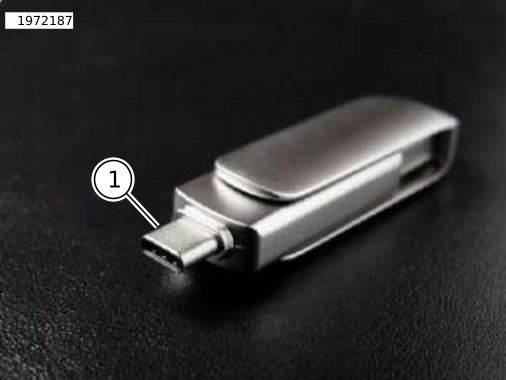
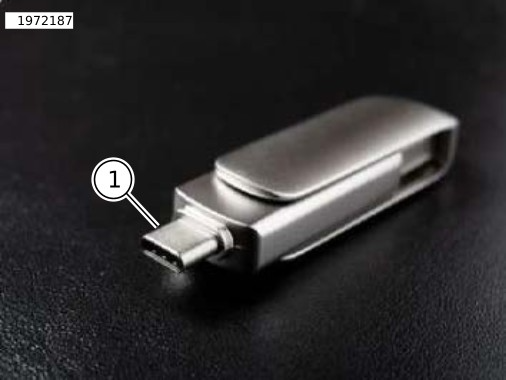
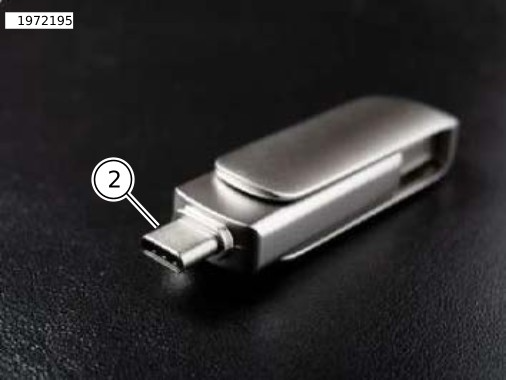
The USB stick used for updates must be a USB-C with 64G of space or higher. Adapters and lower stick space will cause the update to give errors.
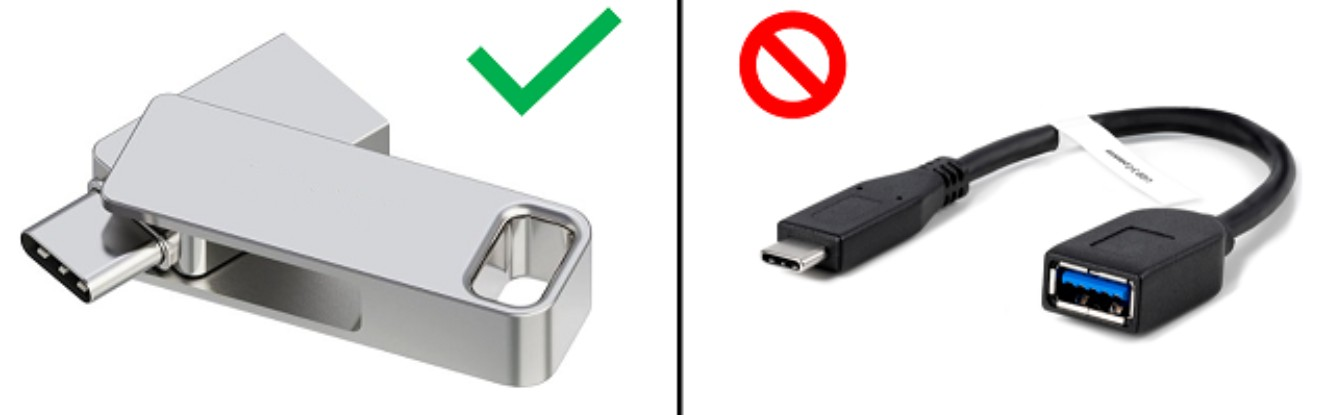
Do not put both update folders on 1 stick. Either have 2 sticks with each version or if needed preform the first update then format the stick before doing the second update.
The format type must be ExFAT.
Update Files
https://www.dropbox.com/scl/fo/iqsw26wzzyks6cmwzqbt9/AJhdy3OFVpGVcMNt-3XQPmU?rlkey=3n4mw7qv1m24po7cr6lpqnhnw&e=1&st=yptq525a&dl=0
Download RF Connect:




Install and RF connect video
https://www.youtube.com/watch?v=X-INtFUorEo
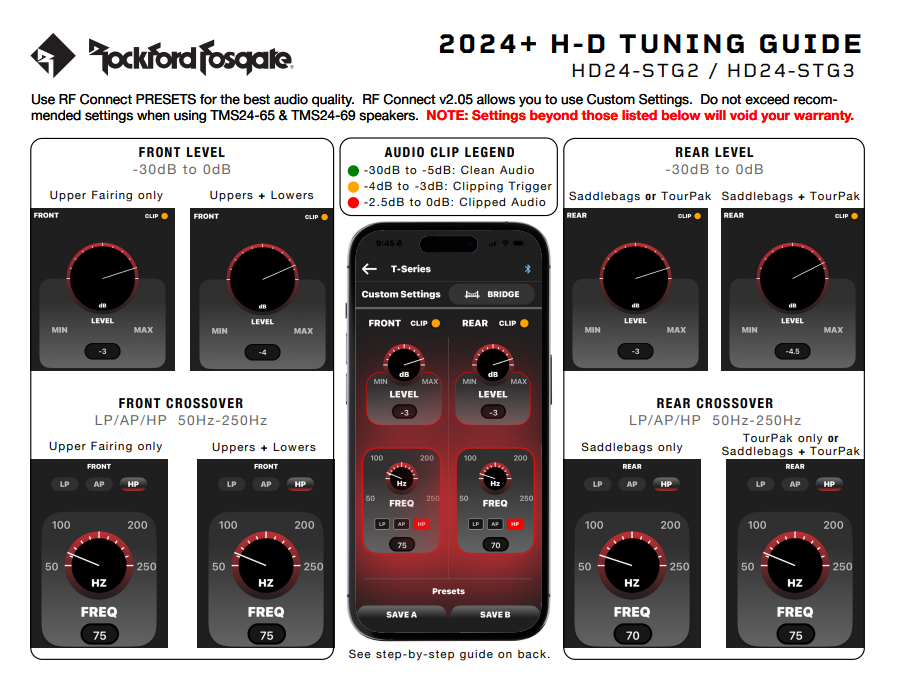
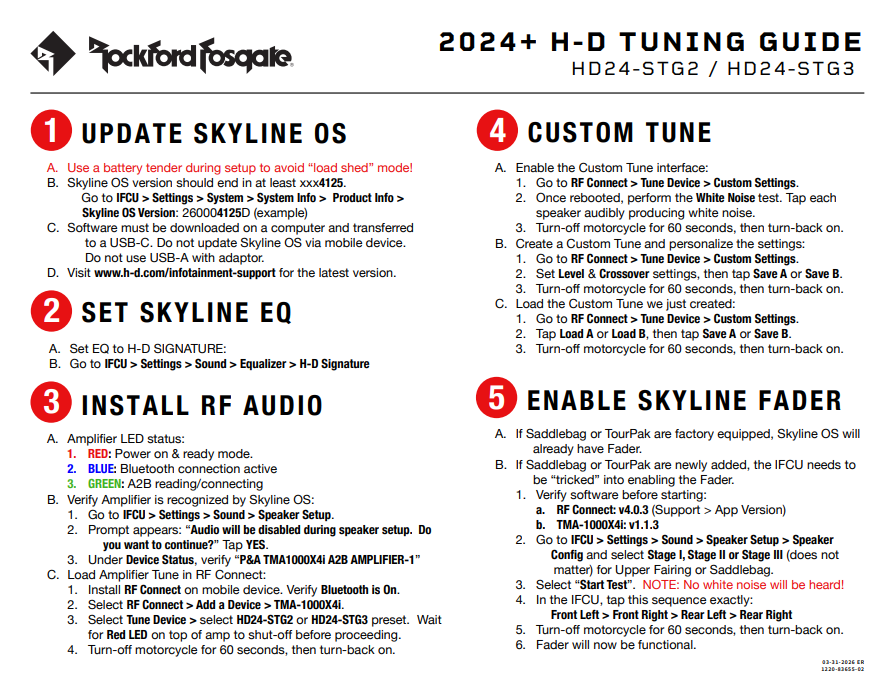
Skyline OS USB Update Preparation
| 1. | Required software files will need to be downloaded for the Skyline™ OS. Refer to:Infotainment Support Resources page. |
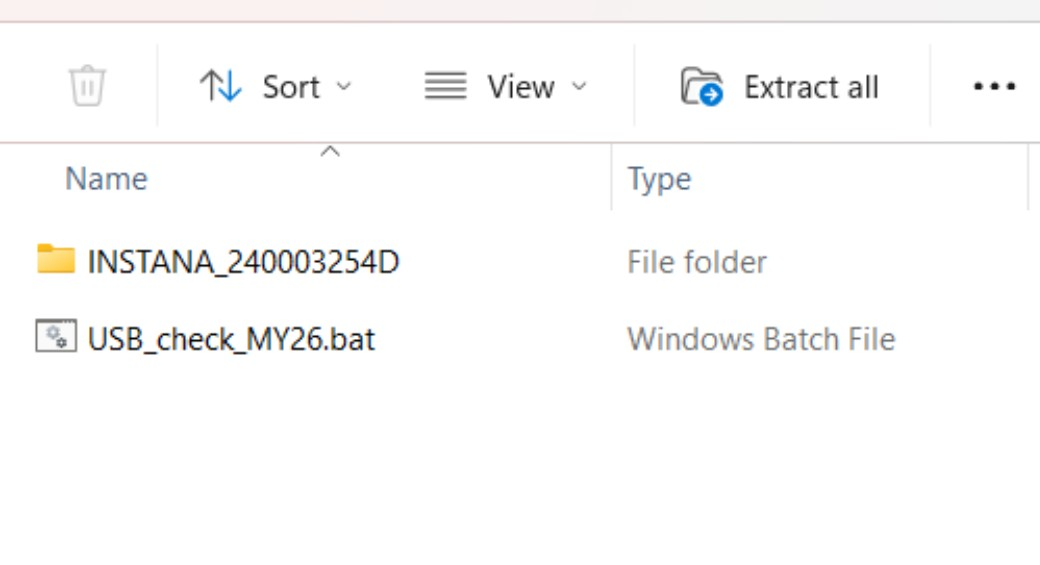
| | 1.1. | USB-1: Transfer contents to an empty USB drive (only required if at version 2111D or earlier). Contents: folder INSTANA_240003254D and USB_check_MY26.bat file. See Figure 2. NOTE Double click USB_check_MY26.bat to verify package contents and USB formatting. Video 1 |
| Figure 2. USB-1 Contents |
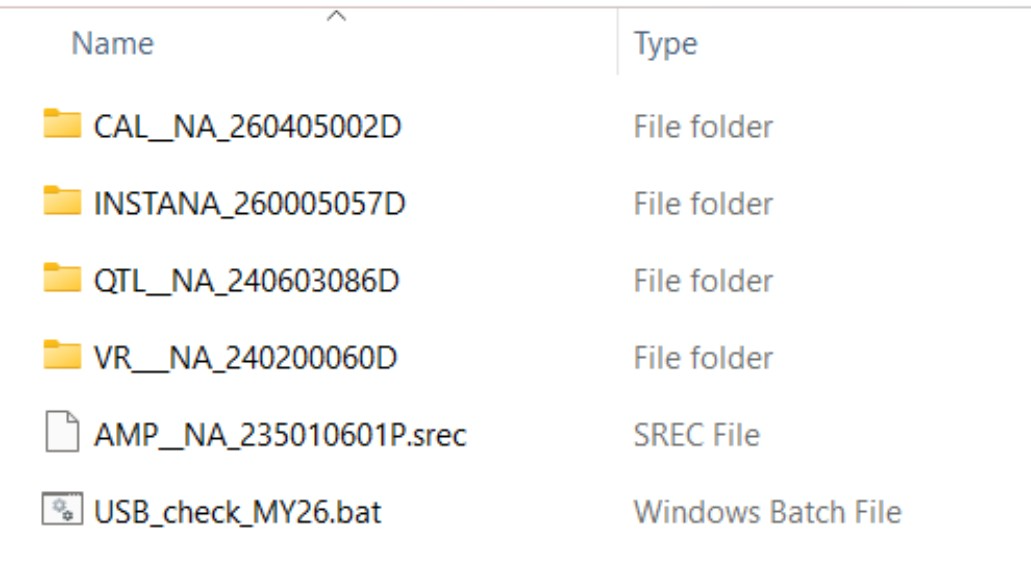
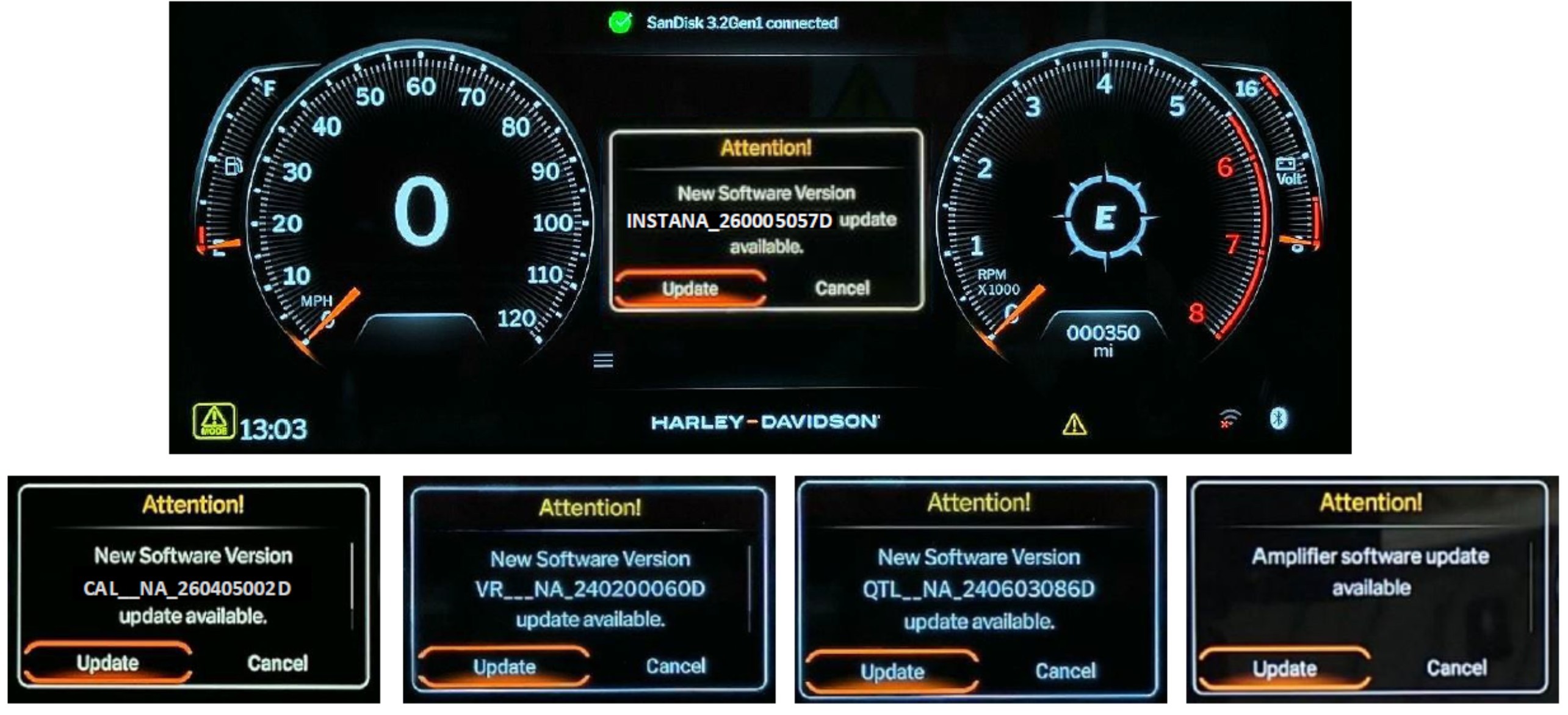
| | 1.2. | USB-2: Transfer contents to an empty USB. Contents: folders INSTANA_260005057D, CAL_NA_260405002D, QTL_NA_240603086D, VR_NA_240200060D, AMP_NA_235010601P.srec, and USB_check_MY26.bat file. See Figure 3. NOTE Double click USB_check_MY26.bat to verify package contents and USB formatting. This process will take 3 to 5 minutes to complete. Video 1 |
| Figure 3. USB-2 Contents Video 1. USB_check_MY26.bat - USB Contents and Format Verification |
| 2. | Prepare vehicle for software update: |
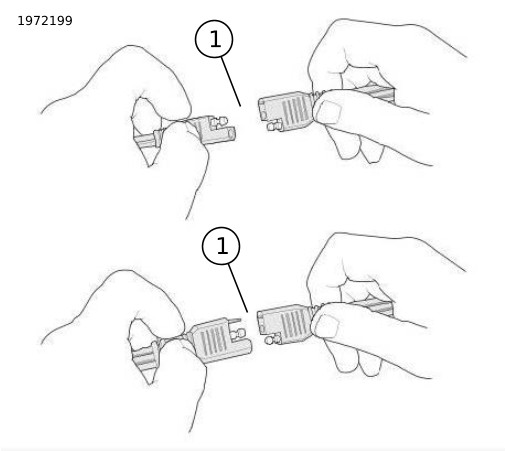
| b. Confirm the battery is at full charge prior to starting the update process. | 2.1. | See Figure 4. Connect vehicle to a battery tender and leave connected. |
| Figure 4. Connect Battery Tender |
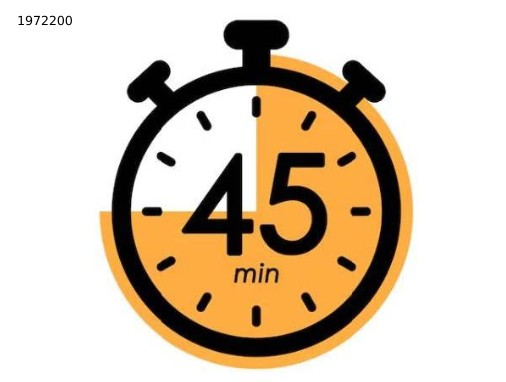
| | 2.3. | See Figure 5. Reserve 45 minutes for the complete update process without interruptions. |
| Figure 5. Process Timing |
Skyline OS Update Procedure
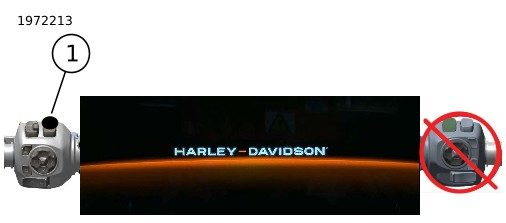
| 1. | Turn vehicle to ACCESSORY MODE. | Figure 6. Trip Switch |
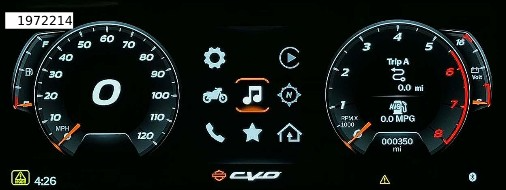
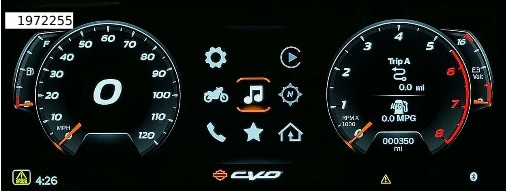
| 2. | See Figure 7. Wait until the Infotainment Control Unit (IFCU) fully boots up and the Main Menu is visible. | Figure 7. Main Menu |
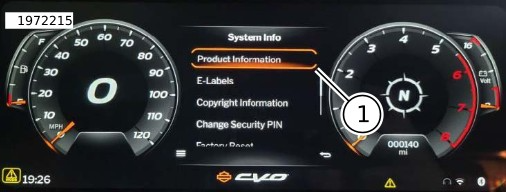
| 3. | Check software version:a. Select: Settings (on IFCU) b. Navigate: System > System Info > Product Information c. If the version is 1467D, 2100D or 2111D, proceed to step 4. d. If the version is 2237D or higher, skip to step 10. | Figure 8. Product Information |
| 4. | See Figure 9. Insert USB 1 into the vehicle's USB cable. |
| | 4.1. | See vehicle's owner's manual for USB cable location. |
| Figure 9. USB 1 |
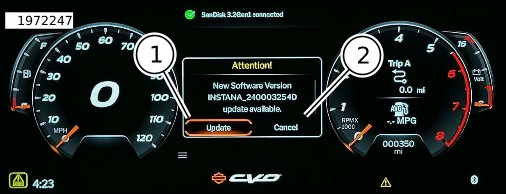
| 5. | Wait for the system to recognize it. When prompted, select: |
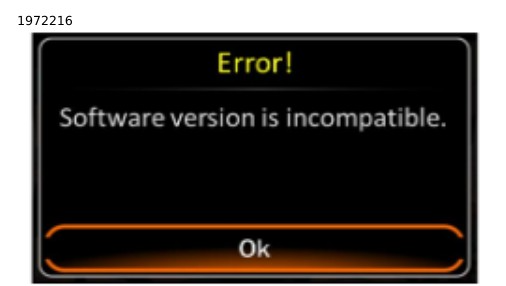
| | 5.3. | See Figure 11. An Error will show if the current IFCU software is 2237D or higher. Skip to step 10. |
| Figure 10. System Recognition Figure 11. IFCU Software Error |
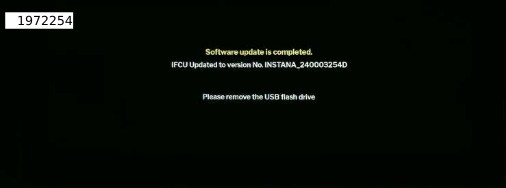
| 6. | See Figure 12. After update completes, USB1 will need to be removed before the IFCU will reboot. | Figure 12. Completed Software Update |
| 7. | Remove USB1. See Figure 13. | Figure 13. USB 1 |
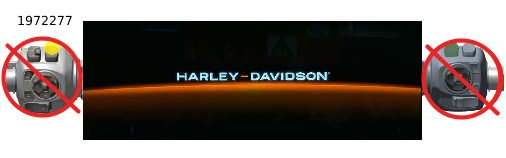
| 8. | See Figure 14. The IFCU will reboot automatically once USB 1 has been removed. DO NOT USE THE HAND CONTROLS TO TURN BIKE OFF OR ATTEMPT TO TURN ON. | Figure 14. DO NOT USE HAND CONTROLS |
| 9. | See Figure 15. Wait for the IFCU to fully boots up and the main menu is visible. | Figure 15. IFCU Main Menu Screen |
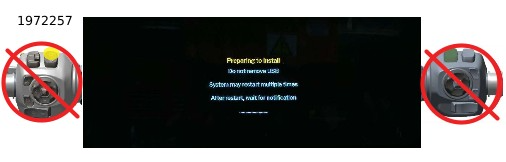
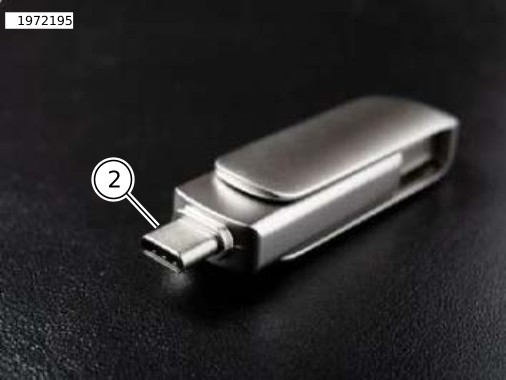
| 10. | See Figure 16. Insert USB 2 into the vehicle's USBcable. NOTE See Figure 17. DO NOT REMOVE USB2 AT ANY TIME DURING THE UPDATE PROCESS. DO NOT USE THE HAND CONTROLS TO TURN THE BIKE OFF OR ATTEMPT TO TURN ON. a. See vehicle's owner's manual for USB cable location. | Figure 16. USB 2 Figure 17. DO NOT USE THE HAND CONTROLS |
| 11. | See Figure 18.Wait for the system to recognize it. When prompted, select:a. UPDATE to proceed. b. CANCEL to stop the process. c. The IFCU will perform five updates. Confirm each update to continue. d. The IFCU will reboot after each update. | Figure 18. Perform Five Updates |
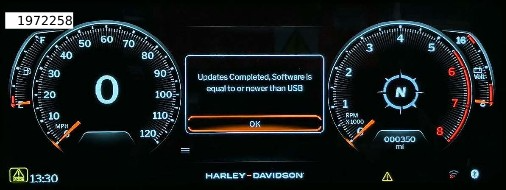
| 12. | See Figure 19. After the last update has been completed, a pop-up message will say: Updates Completed.a. This message will only display for 10 seconds and then will self-clear. | Figure 19. Pop-Up Message |
| 13. | See Figure 20. Remove USB 2. | Figure 20. USB 2 |
COMPLETE
NOTE
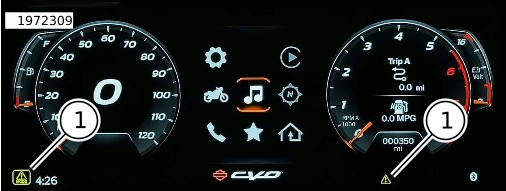
Warning ICONS are expected and will clear upon restarting the bike.
| 1. | See Figure 21.Turn the vehicle OFF manually.a. To clear any warning ICONS. Leave the vehicle off for 60 seconds before turning ON again. | Figure 21. Warning Icons Displayed |
| 2. | All software Updates have been completed. Verify through IFCU:a. Skyline OS b. Navigate: Settings > System > System info > Product information c. Amplifier d. Navigate: Settings > Sound > Speaker Setup > Device Status > Info e. Verify audio is heard. |